HOME SCREEN WIDGETS

Your fridge, with the door open.

Out of sight is out of mind. That is the whole problem this app exists for, and a list you have to open is still a list you have to remember to open. So Fridge Forecast puts what needs attention on your Home Screen, where you already look a hundred times a day.

No app opening. No tapping. You glance at your phone to check the time, and the spinach quietly files itself in your head. That is the entire trick, and it works because glances add up.

Live on your actual Home Screen.
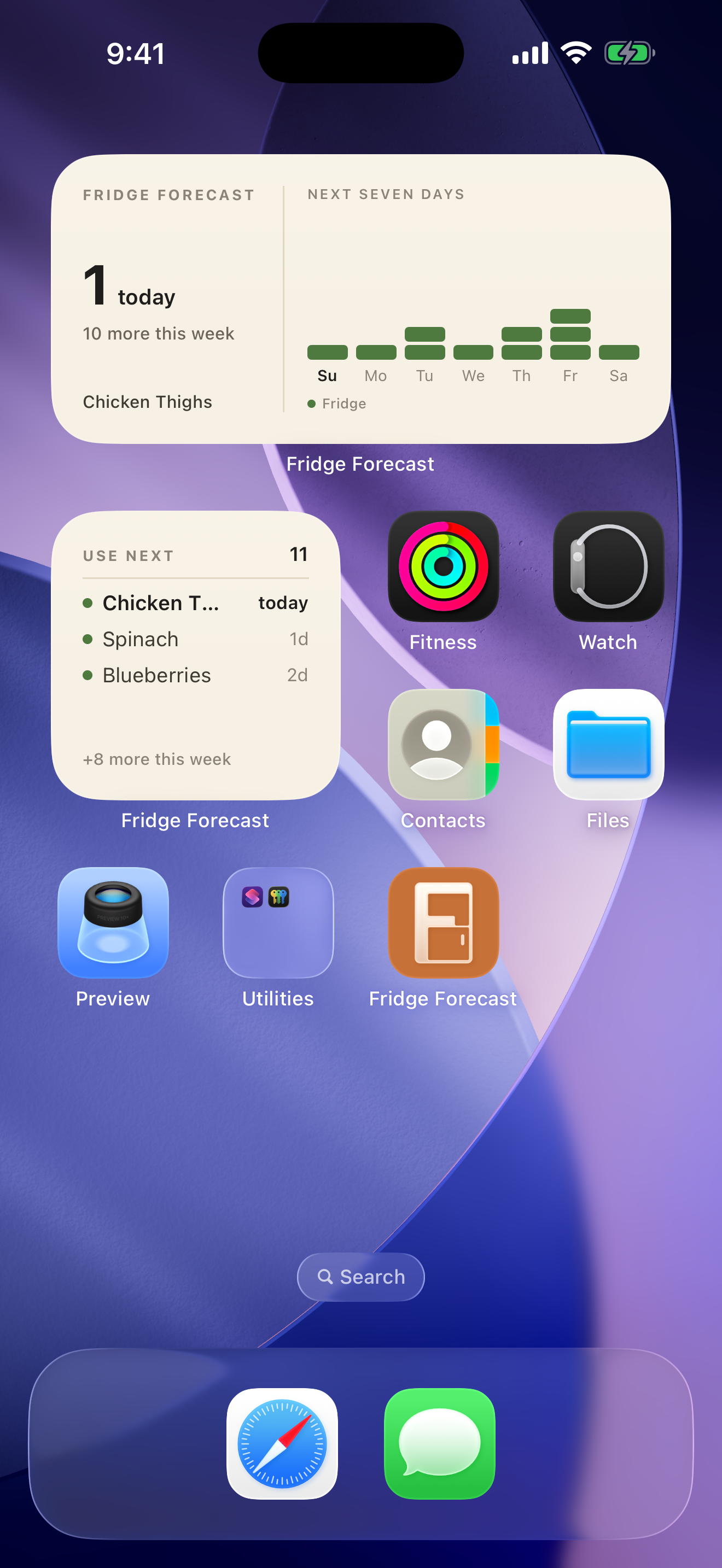
Both Fridge Forecast widgets on an iPhone Home Screen in Day appearance
The Week Ahead and What Needs Attention, where a normal glance can do the remembering.
THE TWO WIDGETS

Choose the kind of glance you need.

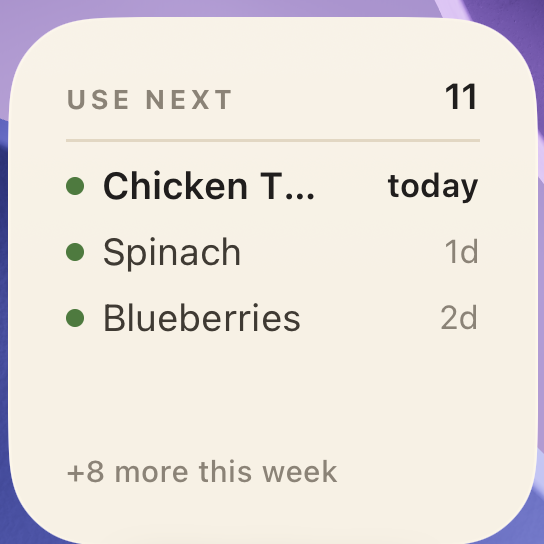
01 · WHAT NEEDS ATTENTION

The shelf list.

The count of things worth using next, with the next few named beside the day they land: today, tomorrow, Saturday. It comes in a small size for a corner of your screen and a wider one that names five. There is also a Lock Screen version, for awareness before you even unlock.

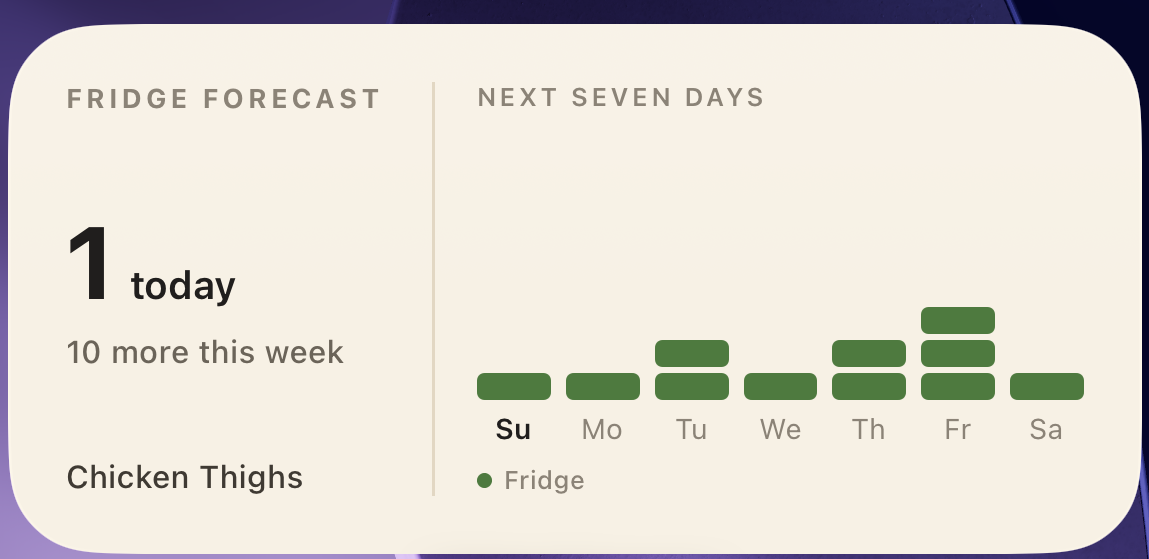
02 · THE WEEK AHEAD

A forecast, plainly.

Today's count on the left, and the week's items on the right with the day each one lands. A forecast in the plainest sense: what this week looks like in food.

ON THE PHONE

The useful part is where the glance lives.

These are the real widgets running with a live snapshot from the demo kitchen—not isolated design comps.

DESIGNED TO BE CALM

A Home Screen you dread is one you stop checking.

Most reminder widgets shout. This one is deliberately quiet.

01

Words carry urgency.

No red badges or alarm numbers. What is closest sits first and simply says “today.”

02

Color has one job.

Green means fridge, blue means freezer, and pink means pantry. Decoration never competes with information.

03

Past is not a punishment.

Things past their date appear as one quiet line, never a wall of red. The app's no-shame stance stays intact.

IT STAYS HONEST BY ITSELF

Today still means today.

The widgets recompute every morning on their own. “2 days” becomes “today” at midnight whether or not you open the app, all week. Your kitchen data never leaves your phone to make that happen; the widget reads a small local snapshot the app refreshes whenever you use it.

HOW TO ADD THEM

Four taps, then just glance.

  1. 01Press and hold

    An empty spot on your Home Screen.

  2. 02Tap Edit, then Add Widget

    Depending on your iOS version, you may see the plus button first.

  3. 03Search Fridge Forecast

    Pick What Needs Attention, The Week Ahead, or both.

  4. 04Place it where you look

    The Lock Screen version is added from the Lock Screen customizer.

FRIDGE FORECAST BETA

Beta opening soon.

When the TestFlight link is ready, this is where the one-minute install starts.

Questions before then?